WHM's demo mode allows you to provide clients with a hands-on preview of cPanel without the ability to modify files or folders. This feature is useful for showcasing cPanel's capabilities to potential customers while maintaining system security. When in demo mode, users can explore various features and functionalities but are restricted from making permanent changes that could affect the live environment.
Enable Demo Mode
-
Step 1: Access WHM Account Functions
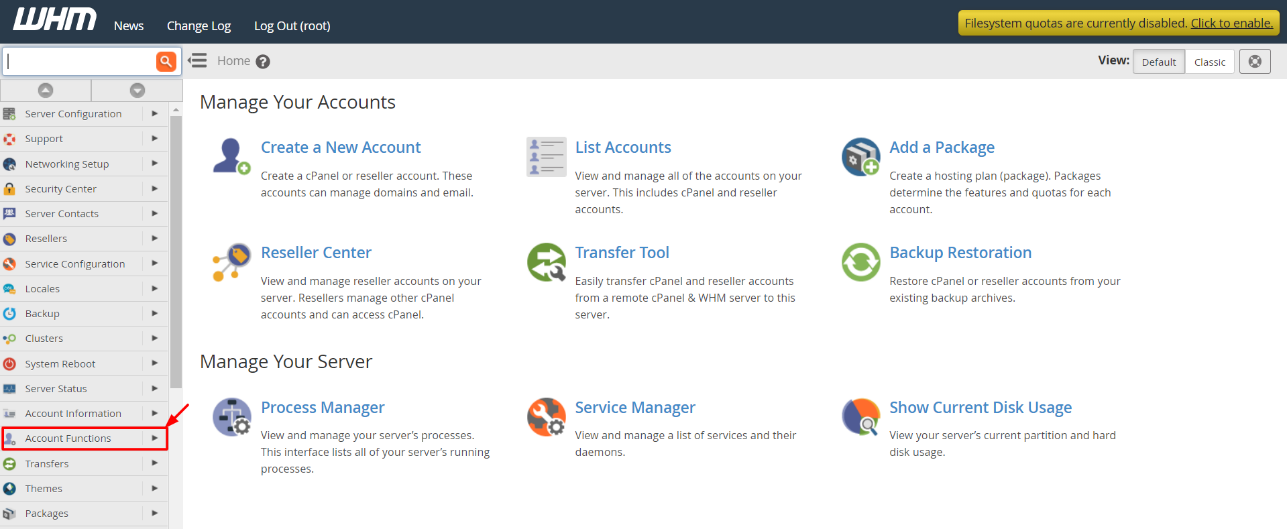
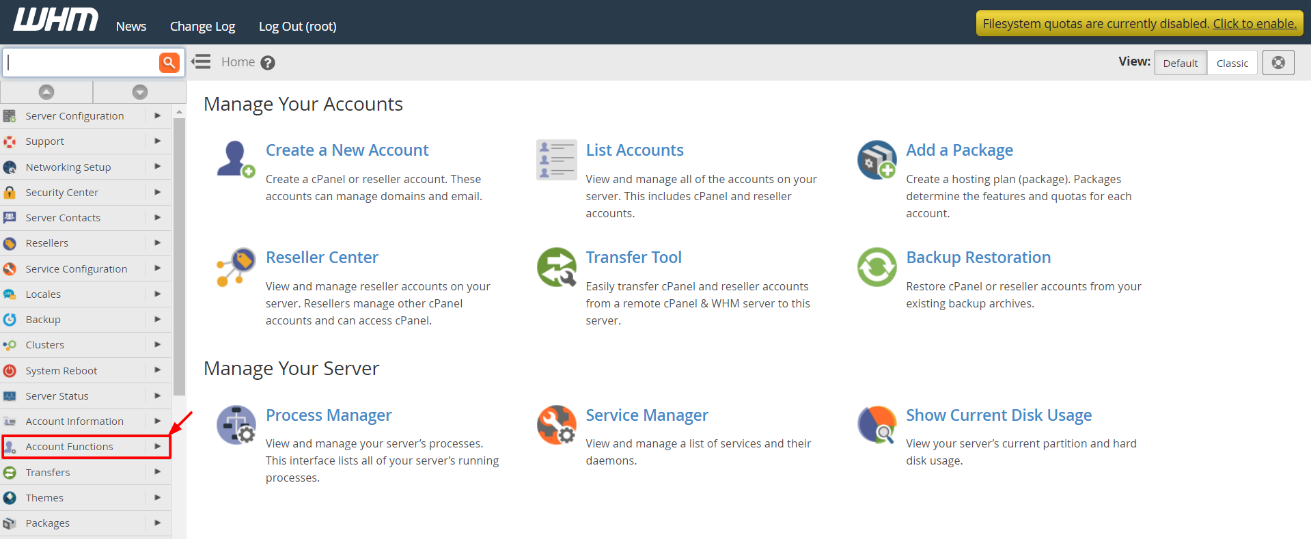
Log in to your WHM root account and navigate to the Account Functions option in the navigation menu. This section contains various tools for managing user accounts, domains, and resources.
-
Step 2: Open Manage Demo Mode
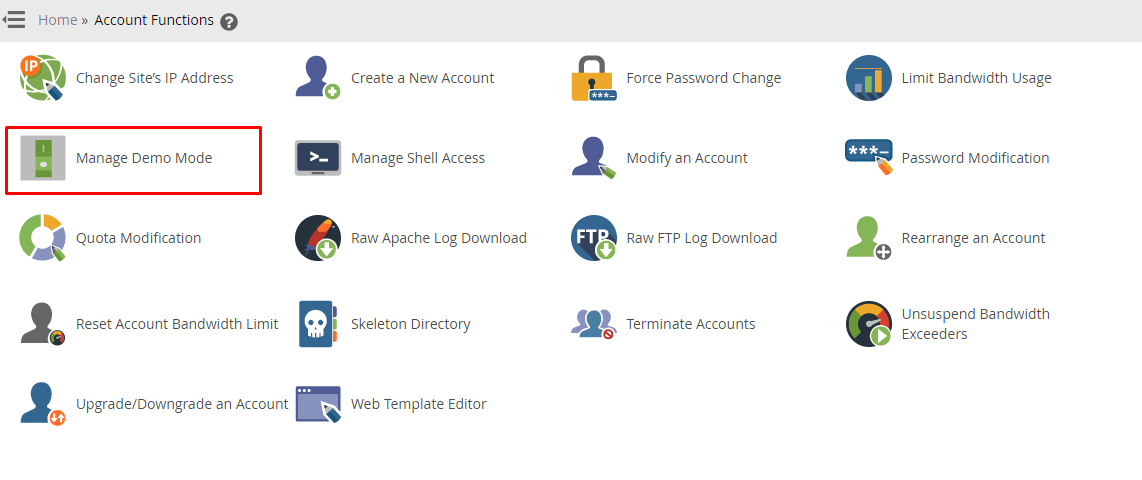
Select Manage Demo Mode from the Account Functions menu. This tool allows you to toggle demo mode on and off for specific accounts.
-
Step 3: Enable Demo Mode
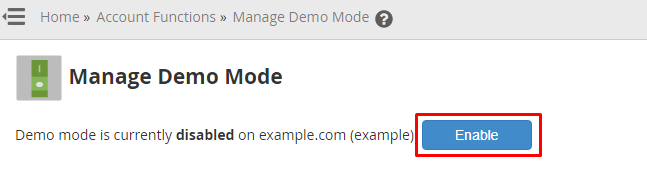
If demo mode is currently disabled for the domain, click the Enable button next to the account you wish to configure. This action restricts the user's access to non-destructive actions within cPanel.
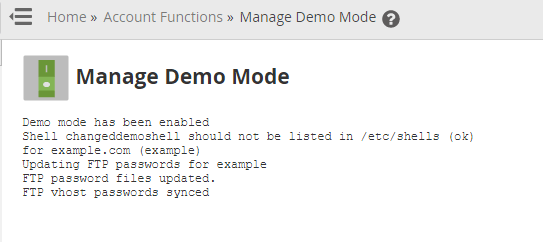
WHM will activate demo mode for the account and configure its settings accordingly, ensuring that the user can explore cPanel without making any permanent changes.
The account will now function in demo mode until you choose to disable it. During this time, the user can test features such as email management, website statistics, and more without altering any live data.
Disable Demo Mode
-
Step 1: Access Account Functions
Choose the Account Functions option from the navigation menu. This section includes various administrative tools for managing your server and user accounts.
-
Step 2: Open Manage Demo Mode
Select Manage Demo Mode. This tool provides you with the ability to manage demo mode settings for all accounts on your server.
-
Step 3: Disable Demo Mode
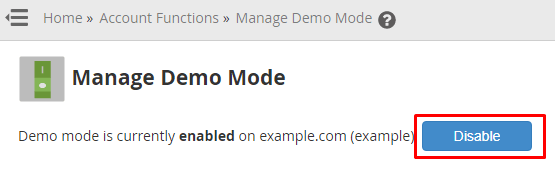
If demo mode is currently active for the account, you will find the Disable button next to it. Click this button to restore full access and functionality to the user's cPanel account.
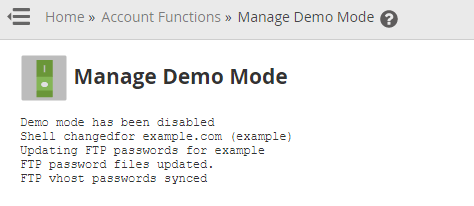
WHM will deactivate demo mode for the account, removing any restrictions that were in place.
The system will restore all account privileges and perform the necessary configurations, bringing the account back to full operational status. The user can now make changes to their website, manage files, and use all other cPanel features as usual.
Tip: It's a good practice to communicate with your users before enabling or disabling demo mode to ensure they are aware of the limitations and capabilities during this period. This can help prevent any confusion or frustration.