The CSF (ConfigServer Security & Firewall) allows you to block incoming traffic from specific countries based on geolocation. This can help protect your server from unwanted traffic or attacks originating from certain regions. This guide shows you how to configure country-based blocking through WHM.
How to Block Traffic by Country
-
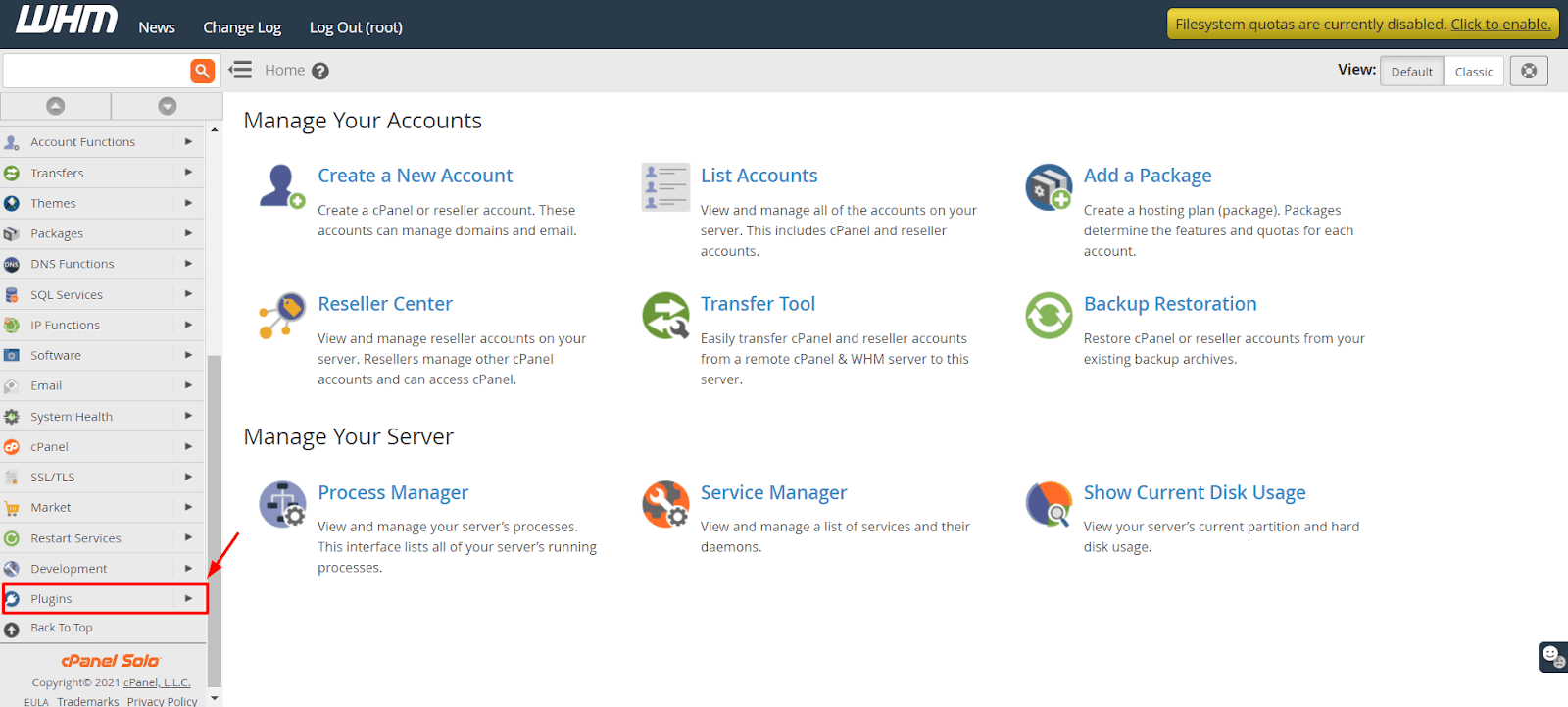
Step 1: Access WHM and Navigate to Plugins
Log in to your WHM root account and select Plugins from the side menu.
-
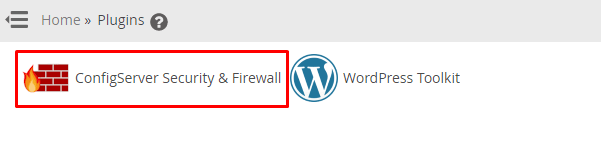
Step 2: Open ConfigServer Security & Firewall
Click on ConfigServer Security & Firewall from the plugins list.
-
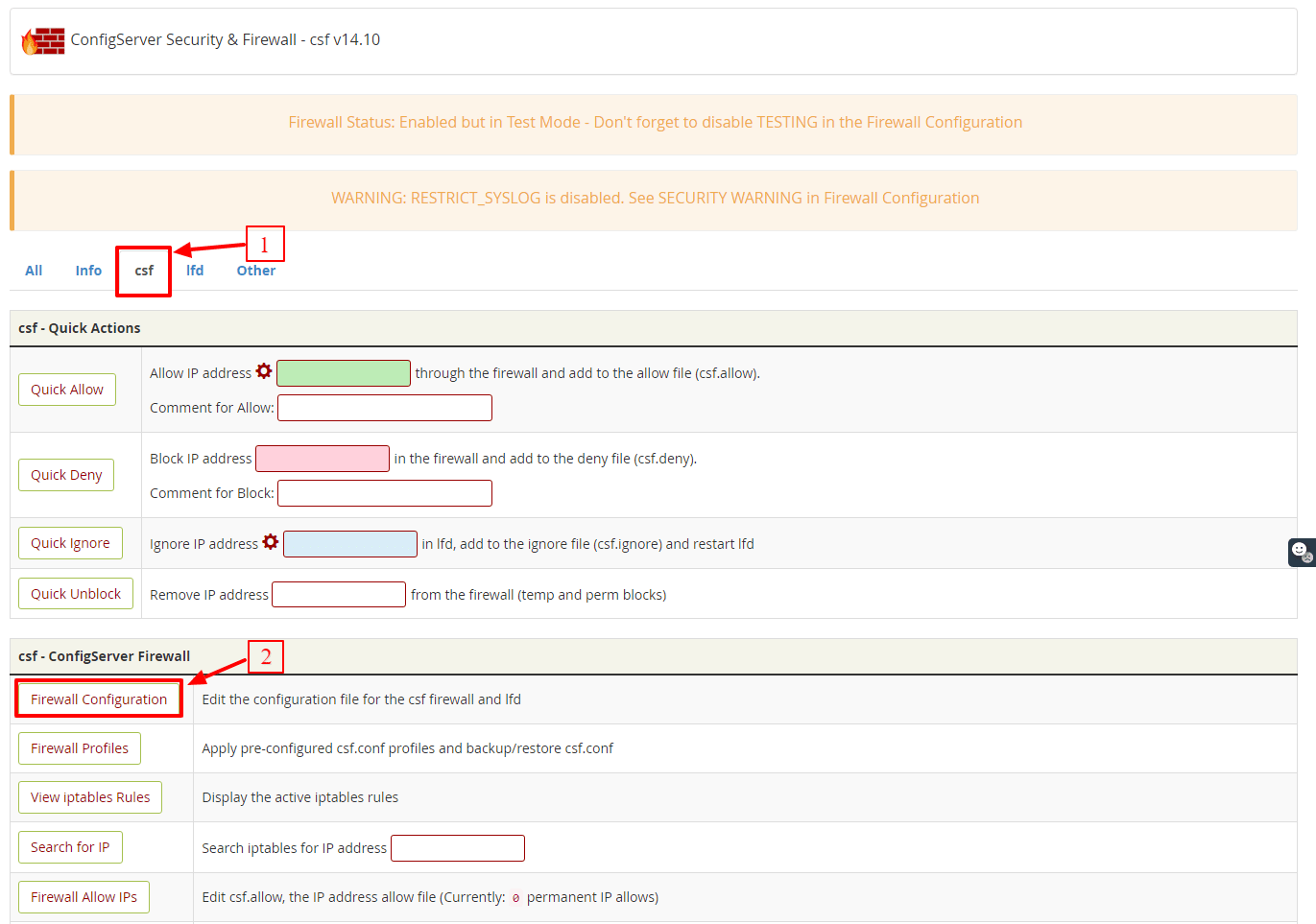
Step 3: Access Firewall Configuration
Select the csf tab and click Firewall Configuration under the csf-ConfigFirewall section. The CSF configurations panel will open.
-
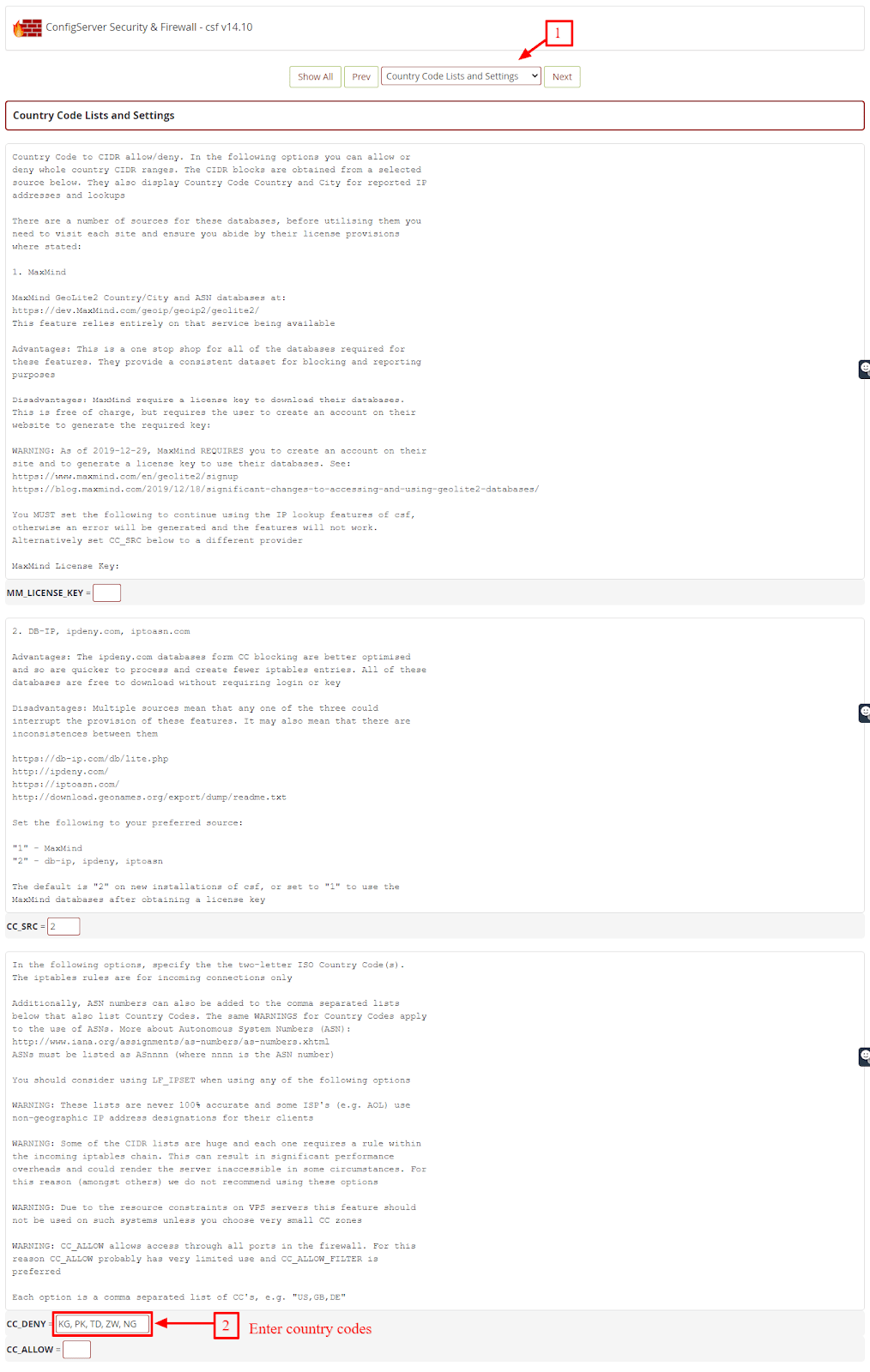
Step 4: Locate Country Code Settings
Search for and navigate to the Country Code Lists and Settings section in the configuration panel.
-
Step 5: Enter Country Codes to Block
In the CC_DENY field, enter the two-letter country codes for the countries you want to block. Separate multiple codes with commas.
You can find the correct country codes at ISO 3166-1 alpha-2.
-
Step 6: Save Configuration Changes
After entering the country codes, click the Change button at the bottom of the configuration panel to save your changes.
-
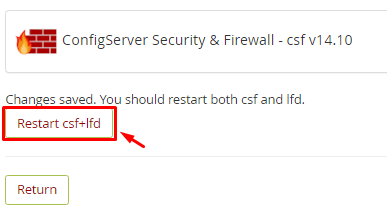
Step 7: Restart CSF Firewall
Click Restart csf+lfd to restart the firewall application and apply your changes.
The CSF Firewall will now block all incoming traffic from the countries you specified in the CC_DENY field.