The Backup User Selection interface in WHM allows system administrators to selectively include or exclude user accounts from scheduled backups. This feature, enhanced in cPanel & WHM version 74, provides toggles and an Account Actions menu for streamlined management, enabling easy activation or deactivation of backups for all accounts with a single click.
How to Use the Backup User Selection Interface
-
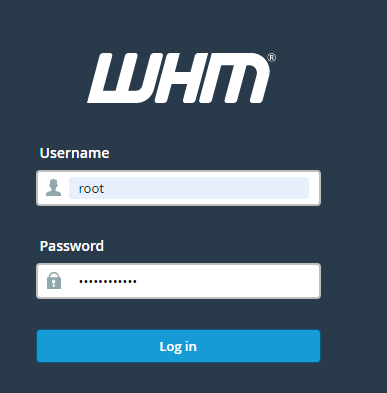
Step 1: Log in to WHM
Access your WHM control panel using your administrator credentials.
-
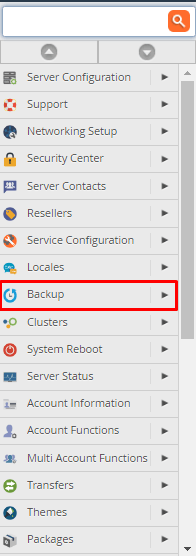
Step 2: Navigate to the Backup Section
In the WHM sidebar, locate and click on the "Backup" section.
-
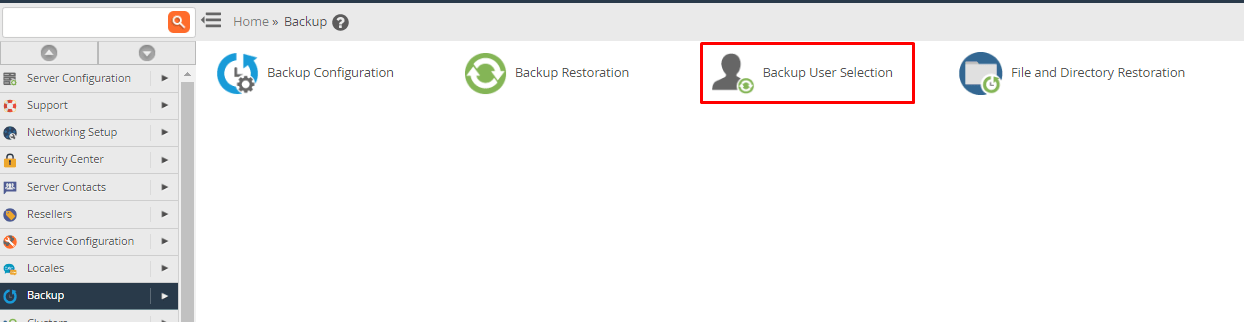
Step 3: Select Backup User Selection
Choose the "Backup User Selection" option from the available backup features.
-
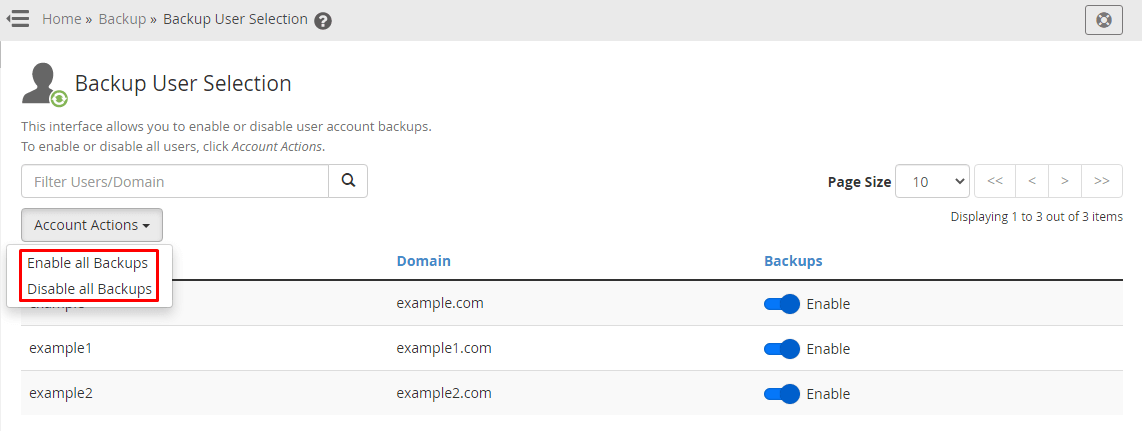
Step 4: Enable Backups for All Accounts
On the Backup User Selection page, access the "Account Actions" section. To activate the backup option for all cPanel accounts, select "Enable all backups".
-
Step 5: Disable Backups for All Accounts (Optional)
If you wish to deactivate the backup option for all cPanel accounts, select the "Disable all Backups" option from the Account Actions menu.
-
Step 6: Enable or Disable Backups for Specific Users
You can also enable or disable backups for individual users by using the toggle switches next to each account name in the user list.

Additional Information
When setting up a backup in the "Backup Configuration" on WHM, user account information is automatically included. You can modify this option using the Backup User Selection feature to customize which accounts are backed up according to your needs.